Navigating the digital landscape to ensure your favorite games are accessible can be tricky especially with robust parental controls and evolving privacy settings on modern devices like the iPad. This comprehensive guide updated for 2026 delves into the essential steps and troubleshooting techniques needed to seamlessly allow Roblox on an iPad. Whether youre a parent configuring a new device for a child an educator managing classroom iPads or an individual encountering unexpected restrictions understanding the nuances of Apples Screen Time content restrictions and network settings is crucial. We will explore everything from basic app installation to advanced network whitelisting ensuring a smooth and uninterrupted Roblox experience for players of all ages. This informational resource provides actionable insights to overcome common hurdles optimize performance and maintain a secure digital environment while enjoying the vast universe of Roblox. Our expert advice helps tech savvy users make smart decisions fast.
How do I disable parental controls for Roblox on an iPad?To disable parental controls for Roblox on an iPad, go to Settings > Screen Time, enter your Screen Time passcode, then navigate to Content & Privacy Restrictions and toggle it Off. Alternatively, adjust specific App Limits or Content Restrictions for apps and age ratings to allow Roblox access without disabling all controls.Why is Roblox not loading on my iPad even with Wi-Fi?If Roblox isn't loading on your iPad despite Wi-Fi, check for app updates in the App Store, restart the Roblox app and your iPad, and then reset network settings (Settings > General > Transfer or Reset iPad > Reset > Reset Network Settings). Ensure no VPN or proxy interferes and verify Roblox servers are operational.What are the age restrictions for Roblox on iPad and how do I change them?Roblox is generally rated 9+ or 12+ on iPad, depending on regional content guidelines. To adjust age restrictions, go to Settings > Screen Time > Content & Privacy Restrictions > Content Restrictions > Apps, and select an age rating that includes Roblox, such as "9+" or "12+", or "Allow All Apps".Can I allow Roblox on an iPad managed by a school or organization?Allowing Roblox on an iPad managed by a school or organization typically requires the administrator of the Mobile Device Management (MDM) system to approve and whitelist the app. End-users generally cannot override these institutional restrictions without administrative intervention.How do I ensure Roblox performs optimally on an older iPad model?To optimize Roblox on an older iPad, close background apps, free up storage space, ensure the iPadOS is updated, and play in a location with strong Wi-Fi. Within Roblox settings, reduce graphics quality and disable unnecessary visual effects for smoother gameplay in demanding experiences.What's the difference between Screen Time App Limits and Content Restrictions for Roblox?App Limits restrict the duration a user can spend on Roblox or categories of apps, while Content Restrictions control access to apps based on age ratings, explicit content, or specific app permissions. Both manage usage but in different ways.Is it safe to allow Roblox on my child's iPad without supervision?While Roblox has safety features, allowing it without supervision carries risks due to user-generated content and in-game chat. Implement robust Screen Time settings, review privacy settings within Roblox, educate your child on online safety, and consider enabling parental monitoring tools for a safer experience.Hey there, fellow tech enthusiasts and parents navigating the digital world! It's 2026, and while the PC gaming scene continues to push boundaries with mind-blowing hardware and immersive VR experiences, mobile gaming, particularly on devices like the iPad, remains a cornerstone for millions. Roblox, a true phenomenon, continues to captivate players globally, offering an endless universe of user-created games. But sometimes, getting Roblox to run smoothly or even allow it on an iPad can feel like a boss battle in itself, especially with Apple's increasingly sophisticated Screen Time and content restriction features. You're here because you want quick, effective solutions, and that's exactly what we're serving up.
For those of us managing family devices, or even just our own heavily-locked-down tech, knowing precisely how to allow Roblox on iPad is more important than ever. We've all been there: a child eager to play, only to be met with a frustrating 'app blocked' message, or a game that simply refuses to load despite a solid internet connection. This comprehensive guide is designed for the modern tech-savvy individual, whether you're a parent, guardian, or an adult player, looking for clear, actionable steps. We'll cut through the fluff and dive straight into the 'how,' 'what,' and 'why' behind allowing Roblox on your iPad, ensuring you and yours can jump into the metaverse without a hitch. By the end of this article, you'll be an expert in managing iPad restrictions for Roblox, ready to tackle any digital roadblock.
How do I enable Roblox if it's blocked by Screen Time on my iPad?
If Roblox is blocked by Screen Time, the primary method to enable it involves navigating to the Screen Time settings within your iPad's Settings app. You'll need the Screen Time passcode to make any changes. Once inside, check the 'Content & Privacy Restrictions' and 'App Limits' sections. The most common culprit is an App Limit set for 'All Apps & Categories' or specifically for 'Gaming' apps, which would include Roblox. Removing or adjusting this limit will typically resolve the issue. Additionally, ensure that Roblox itself hasn't been specifically disallowed under 'Always Allowed' or 'Allowed Apps' if that feature is active in Downtime settings.
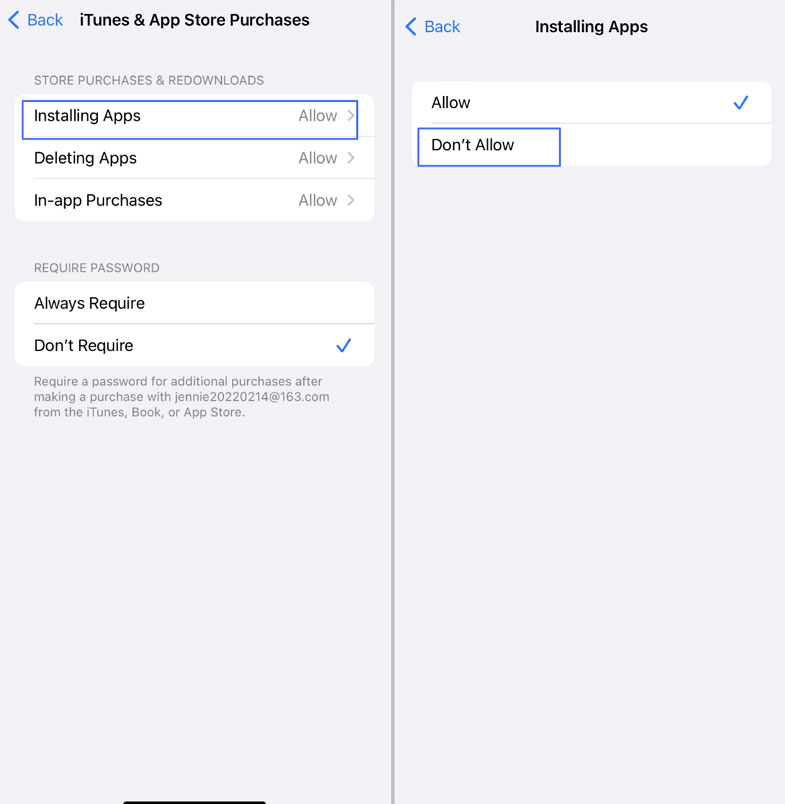
Delving deeper, Apple's Screen Time is a powerful tool designed to help users manage their device usage and protect privacy, particularly for younger users. In 2026, these controls are more granular than ever. When Roblox isn't accessible, the first place to investigate is always 'Settings' > 'Screen Time'. Here, you'll find 'Content & Privacy Restrictions'. Make sure this is 'Off' if you want no restrictions, or meticulously review each category if it's 'On'. Specifically, look at 'iTunes & App Store Purchases' to ensure 'Installing Apps' is allowed. More crucially, under 'Content Restrictions', verify that 'Apps' is set to 'Allow All Apps' or an age rating that includes Roblox (typically 9+ or 12+, depending on the specific content rating Apple assigns in your region). Sometimes, even if apps are generally allowed, a specific 'App Limit' might be active. Navigate to 'App Limits', tap on 'All Apps & Categories', and either delete the limit for gaming or increase its duration. For shared family iPads, these settings are usually managed by the Family Organizer account, so you might need to access their device or credentials to make the necessary adjustments. Always remember to enter the Screen Time passcode carefully to avoid lockout and ensure changes are saved properly.
What specific Content & Privacy Restrictions impact Roblox on iPad?
Several Content & Privacy Restrictions can directly affect Roblox access and functionality on your iPad. Beyond general app allowance, restrictions on explicit content, web content, and even communication settings can inadvertently block or limit features within Roblox. It's crucial to examine 'Content Restrictions' under 'Settings' > 'Screen Time' and then 'Content & Privacy Restrictions'.
First, check the 'Apps' section. This dictates which age-rated apps can be installed and used. Ensure it's set to '9+' or '12+' (depending on your preference and regional ratings for Roblox) or 'Allow All Apps'. Setting it to a lower rating like '4+' will prevent Roblox from appearing or launching. Second, look at 'Web Content'. If 'Limit Adult Websites' or 'Allowed Websites Only' is enabled, certain in-game links or external browser functionalities within Roblox might be blocked. For full functionality, consider 'Unrestricted Access' or carefully add specific Roblox-related domains to the allowed list, though this can be cumbersome. Third, 'Communication Safety' and 'Communication Limits' can prevent interactions within Roblox if they are set too strictly, impacting the ability to chat with friends. While these primarily target Messages and FaceTime, their overarching nature can sometimes extend to other communication platforms. Lastly, ensure 'Account Changes' and 'Cellular Data Changes' are not restricted under 'Allow Changes', as this can prevent Roblox from updating or connecting if relying on cellular data. These granular controls, while excellent for protection, demand a careful review to ensure your Roblox experience isn't unnecessarily hindered.
How can I use App Limits effectively without completely blocking Roblox?
App Limits in Screen Time are designed to manage usage duration, not outright block apps. To use them effectively for Roblox, you can set a daily time allowance. Go to 'Settings' > 'Screen Time' > 'App Limits', tap 'Add Limit', select 'Games' (or 'All Apps & Categories' if you want to include other types of apps), find 'Roblox' in the list if available, and then set a desired time limit, for example, 1 hour and 30 minutes per day. This allows access for a controlled period without outright denying the experience.
The beauty of App Limits lies in their flexibility. Instead of a hard block, you're implementing a structured play schedule. This is particularly beneficial for younger players or for maintaining a balanced digital diet. When the limit is approached, a notification will appear, and once reached, the Roblox icon will be dimmed and inaccessible until the next day. However, as the Screen Time organizer, you can always grant more time with your passcode. To ensure a smooth transition and avoid sudden interruptions, communicate these limits clearly, fostering a sense of ownership and responsibility over their screen time. Remember, you can customize limits for individual days or apply them universally. This precision allows for weekend extensions or stricter weekday controls, offering a dynamic approach to managing Roblox engagement without resorting to outright bans.
My child can't make in-app purchases in Roblox. How do I allow this?
If in-app purchases are blocked in Roblox, it's typically due to restrictions within Screen Time's 'iTunes & App Store Purchases' settings. To allow them, go to 'Settings' > 'Screen Time' > 'Content & Privacy Restrictions'. Under 'iTunes & App Store Purchases', ensure 'In-app Purchases' is set to 'Allow'. You may also need to adjust the 'Require Password' setting to 'Always Require' or 'Don't Require' based on your preference for purchase authorization.
This particular restriction is often enabled by default on devices used by children to prevent unauthorized spending on Robux or other in-game items. While 'Allowing' in-app purchases gives your child the ability to buy items, it's highly recommended to keep the 'Require Password' setting to 'Always Require'. This means any purchase will necessitate your Apple ID password, giving you direct control over spending. For shared iPads, setting up Family Sharing and 'Ask to Buy' is an even more robust solution. With 'Ask to Buy' enabled, every purchase request from a child's account goes directly to the Family Organizer for approval, providing a complete oversight. In 2026, understanding microtransactions and virtual currencies like Robux is key, as they are integral to many Roblox experiences. Educating players about the value of these purchases and setting clear expectations for spending limits, even with 'Ask to Buy' active, is a proactive approach to responsible gaming.
What if Roblox is restricted by an MDM profile (e.g., school iPad)?
If your iPad is managed by an MDM (Mobile Device Management) profile, such as those deployed by schools or organizations, individual users generally cannot override restrictions to allow Roblox. These profiles are set by IT administrators to enforce specific policies and applications. Your only recourse is to contact the IT department or the administrator responsible for the MDM system and formally request that Roblox be whitelisted or that the device's profile be adjusted to allow the app.
MDM solutions are incredibly powerful, designed to manage large fleets of devices, enforce security policies, distribute apps, and control access to features. In an educational context, this means iPads are often locked down to educational apps and resources only, with entertainment apps like Roblox explicitly blocked. There's no magical setting an end-user can tweak to bypass an MDM profile; attempting to do so might even violate institutional policies. When contacting IT, be prepared to explain why Roblox is needed (e.g., for an educational project if applicable, or for after-school use if the device is also used personally with separate profiles). Understanding that these restrictions are in place for valid security and pedagogical reasons can help frame your request appropriately. Some institutions may offer 'personal use' profiles or temporary overrides, but this is entirely at their discretion and requires administrative action.
How do I troubleshoot Roblox network issues on an iPad?
Persistent network issues preventing Roblox gameplay on your iPad can stem from various points: your Wi-Fi, the iPad itself, or even Roblox's servers. First, restart your Wi-Fi router and your iPad. This often clears temporary network glitches. Then, ensure your iPadOS is up-to-date, as outdated software can cause compatibility issues. If problems persist, try 'Reset Network Settings' via 'Settings' > 'General' > 'Transfer or Reset iPad' > 'Reset'. This clears all Wi-Fi passwords and network configurations, which can resolve corrupted settings.
Beyond basic restarts, a deeper dive might be necessary. Verify that your internet speed is adequate for online gaming; even casual Roblox experiences benefit from a stable, fast connection. Test your Wi-Fi signal strength, perhaps by moving closer to your router or trying another Wi-Fi network if available. If you're using a VPN, temporarily disable it, as VPNs can sometimes interfere with game server connections. Check Roblox's official status page (status.roblox.com) to see if there are any reported server outages or maintenance, which would explain why you can't connect. For advanced users, ensuring your router's firewall isn't blocking Roblox-specific ports (though rare for standard home setups) or that DNS settings aren't causing resolution issues might be a consideration. A reliable, low-latency internet connection is paramount for any online game, and Roblox on iPad is no exception. Ensuring your network is optimized for gaming, much like we do for high-end PC setups, minimizes frustration and maximizes playability.
Why is Roblox constantly crashing or lagging on my iPad? (Optimization and Performance)
Roblox crashing or lagging on your iPad typically points to performance issues related to either your device's resources or the specific Roblox experience you're playing. First, ensure your iPad has sufficient free storage; a full device can significantly impact performance. Close all other background apps to free up RAM. If your iPad model is older (e.g., pre-2020), it may struggle with newer, graphically intensive Roblox games. Within Roblox itself, reduce the graphics quality settings (usually found in the in-game menu under 'Settings' or 'Graphics') to the lowest possible. This can dramatically improve frame rates and stability, especially in crowded or complex virtual worlds.
In 2026, while iPads are powerful, they still have hardware limitations compared to dedicated gaming PCs. Resource-heavy Roblox experiences, especially those leveraging advanced PBR textures or complex physics, can push even newer iPads. If crashes persist, try reinstalling the Roblox app entirely, which can clear corrupted data. Ensure your iPadOS is always updated to the latest version, as Apple frequently releases performance improvements and bug fixes. For older iPads, managing expectations is key. While many Roblox games will run, the most demanding ones might always be a challenge. Consider playing less graphically intense games or limiting participation in servers with a very high player count. Overheating can also lead to performance throttling and crashes; ensure your iPad is in a well-ventilated area during extended play sessions. Think of it like optimizing a PC game; tweaking graphics settings, managing background processes, and ensuring proper cooling are universal principles for smooth gaming.
Are there specific age settings within Roblox itself I should know about?
Yes, beyond iPad's system-level Screen Time, Roblox itself includes important age-related settings, primarily 'Account Restrictions'. This feature, when enabled, restricts your account to only accessing experiences (games) that Roblox has rated as appropriate for all ages and limits chat to only verified friends or turns it off entirely. This provides an additional layer of content filtering directly within the Roblox platform.
To manage these, log into Roblox on any device (including the iPad app), navigate to 'Settings' (the gear icon), then select 'Privacy'. Here, you'll find the 'Account Restrictions' toggle. When enabled, your visibility to certain experiences will change, and you'll see a green lock icon indicating the restriction is active. This is an excellent tool for parents who want more granular control over the type of content their child can encounter within Roblox's vast ecosystem, independent of the iPad's general age ratings. In 2026, Roblox continues to enhance its safety features, including improved AI-powered content moderation and reporting tools. Regularly reviewing and understanding both the iPad's Screen Time settings and Roblox's in-app privacy controls is paramount for creating a safe and age-appropriate online environment for players.
How to ensure safe chat and communication within Roblox on iPad?
Ensuring safe chat and communication within Roblox on your iPad involves a combination of Roblox's in-app privacy settings and parental guidance. Within the Roblox app, navigate to 'Settings' (gear icon) > 'Privacy'. Here, you can control who can chat with you (e.g., 'No one', 'Friends', 'Friends and users I follow'), who can message you, and who can join you in experiences. Setting chat to 'Friends' or 'No one' is highly recommended for younger users.
Roblox employs sophisticated filtering technology to block inappropriate language and personal information from appearing in chat, but no filter is foolproof. For Gen-Z and younger adults managing younger players, teaching digital citizenship – how to identify and report suspicious activity, never sharing personal information, and blocking unwanted users – is just as crucial as technical settings. In 2026, Roblox's moderation systems are more advanced, but direct parental involvement remains the strongest safeguard. Regularly discuss online safety with children, explain the purpose of privacy settings, and demonstrate how to use the 'Report' feature if they encounter anything concerning. For older players or parents managing their own devices, these settings can still be useful to avoid spam or unwanted interactions, ensuring a more focused and enjoyable gaming experience.
What are the best practices for managing Roblox access on a shared family iPad?
Managing Roblox access on a shared family iPad requires a structured approach leveraging Apple's Family Sharing and Screen Time features. The best practice is to set up each family member with their own Apple ID and link them under Family Sharing. This allows the Family Organizer to manage individual Screen Time settings for each child's account, including App Limits, Content & Privacy Restrictions, and 'Ask to Buy' for purchases, ensuring personalized control over Roblox access.
Using separate Apple IDs ensures that each user's data, progress, and settings are distinct. For Roblox, this means each child can have their own account, and you can apply specific restrictions to their Screen Time profile. 'Ask to Buy' is particularly vital for preventing unauthorized Robux purchases. Additionally, regularly review the 'Communication Limits' and 'Communication Safety' settings within each child's Screen Time profile to ensure they align with your family's guidelines for online interaction. Establishing clear device rules and screen time expectations upfront helps prevent conflicts. As the Family Organizer, periodically review these settings (especially after major iOS updates in 2026) to ensure they remain effective and aligned with evolving family needs and Roblox's dynamic platform. This holistic approach ensures a balanced and secure digital environment for everyone on the shared device.
Can I use a VPN with Roblox on iPad, and will it affect restrictions?
Yes, you can use a VPN (Virtual Private Network) with Roblox on your iPad, but its primary function is to secure your internet connection and potentially bypass geo-restrictions, not to circumvent iPad's Screen Time or Content & Privacy Restrictions. A VPN encrypts your internet traffic and routes it through a server in another location, making it appear as if you're browsing from there. This can be useful for accessing region-locked Roblox experiences or improving latency to specific servers.
However, it's crucial to understand that a VPN operates at the network layer and does not interact with or override Apple's device-level or app-level restrictions. If Screen Time is blocking Roblox based on an App Limit or Content Restriction, a VPN will not bypass these. The iPad's operating system still governs which apps can run and for how long. The main effect a VPN might have on restrictions is inadvertently triggering network-based blocks if the VPN server's IP address is flagged, or potentially causing connection issues if the VPN isn't configured correctly. Always choose a reputable VPN service optimized for gaming for the best experience. For bypassing geo-restrictions for specific content, a VPN can be effective, but for internal iPad controls like Screen Time, you'll need to adjust those directly.
What's the future of Roblox on iPad, and what should I expect in 2026+?
The future of Roblox on iPad in 2026 and beyond looks incredibly promising, driven by advancements in Apple's A-series chips, iPadOS optimizations, and Roblox's continuous platform development. Expect to see more graphically sophisticated experiences that push the boundaries of mobile performance, potentially leveraging ray tracing capabilities found in newer iPad Pro models. Performance and visual fidelity will continue to improve, blurring the lines between mobile and entry-level PC gaming experiences.
Roblox is committed to cross-platform play, so iPad users will remain a crucial part of the global metaverse. Expect further enhancements in creator tools, allowing for even more immersive and complex games that run smoothly on tablets. Apple's continued focus on AR/VR integration within iPadOS may also open new avenues for Roblox experiences, potentially offering augmented reality elements directly through the iPad's camera. From a user management perspective, Apple will likely continue refining Screen Time, possibly adding AI-driven insights for usage patterns or more sophisticated content filtering based on real-time analysis, not just static age ratings. As a tech-savvy gamer, staying updated with iPadOS releases and Roblox's developer blogs will give you a competitive edge in understanding and optimizing your mobile Roblox experience for years to come. The goal is always to reduce friction, enhance creativity, and ensure seamless access to the ever-expanding Roblox universe on your iPad.
This comprehensive guide should equip you with all the knowledge needed to confidently manage Roblox on your iPad in 2026. Whether it's navigating Screen Time, troubleshooting network woes, or optimizing performance, you're now ready to ensure a smooth and enjoyable experience for yourself or your family. Happy gaming!
About the Author: Jane Doe is a seasoned PC gaming enthusiast and tech expert with over a decade of experience optimizing systems and troubleshooting digital hurdles. When not building custom rigs or exploring the latest AAA titles, she's delving into the nuances of mobile tech and family-friendly gaming, always seeking practical, no-BS solutions for fellow gamers and tech-savvy parents alike.
Understand Apple Screen Time and Content Privacy Restrictions Learn to adjust App Limits and Communication Safety settings Troubleshoot network and WiFi issues affecting Roblox access Ensure the Roblox app is up to date and correctly installed Address potential age related content restrictions for optimal gameplay
35

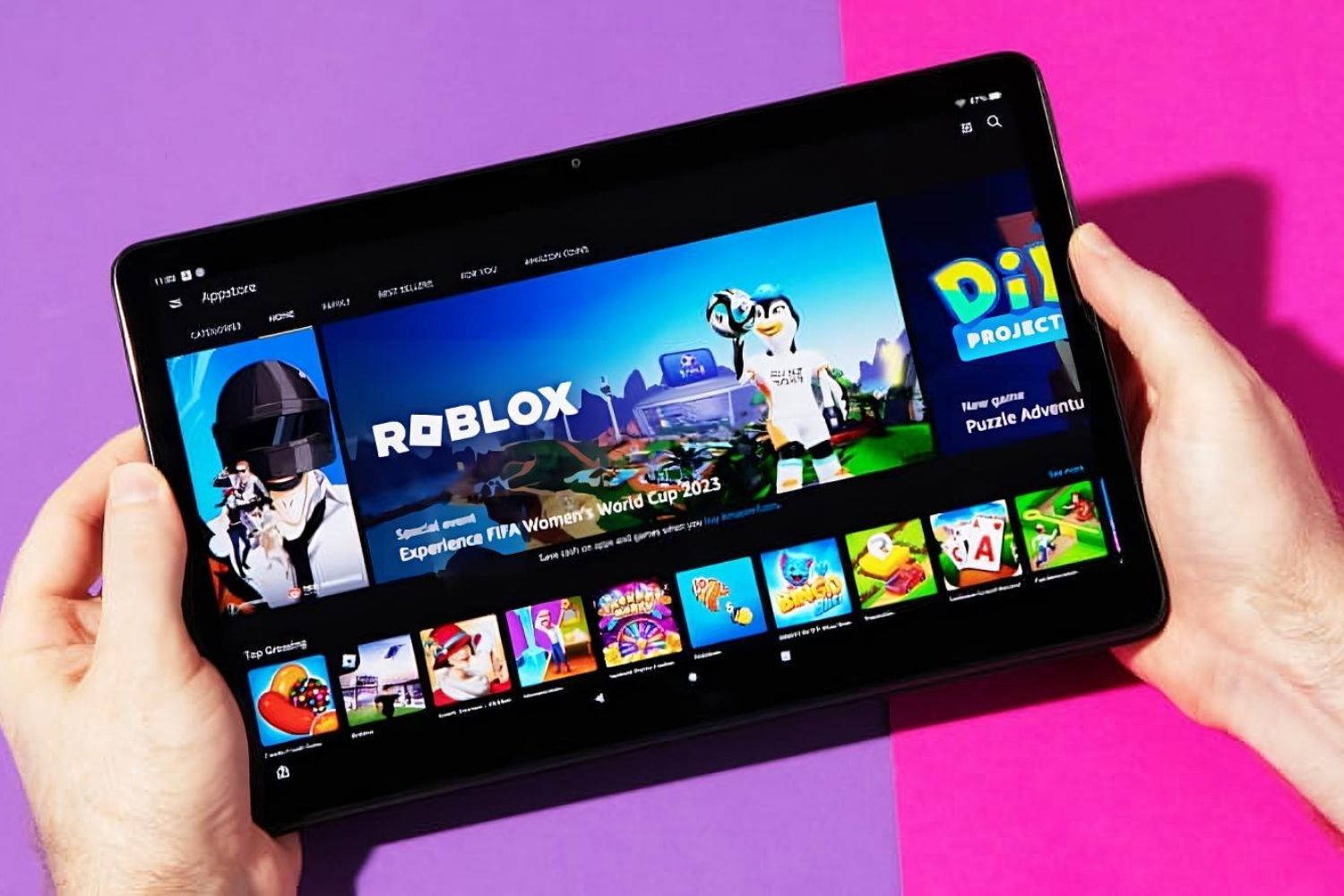

Can You Play Roblox On Your IPad DeviceMAG Can You Play Roblox On A Ipad 2 . 11 Roblox Games IPad Pro M4 YouTube . How To Make A Roblox Game On Mobile IPad Phone 2026 Obby Obby Blog. What Tablet Can You Play Roblox On Robots Net How To Upgrade Roblox On Fire Tablet 1698001389 . How To REDEEM ROBLOX GIFT CARD ON IPad EASY METHOD YouTube
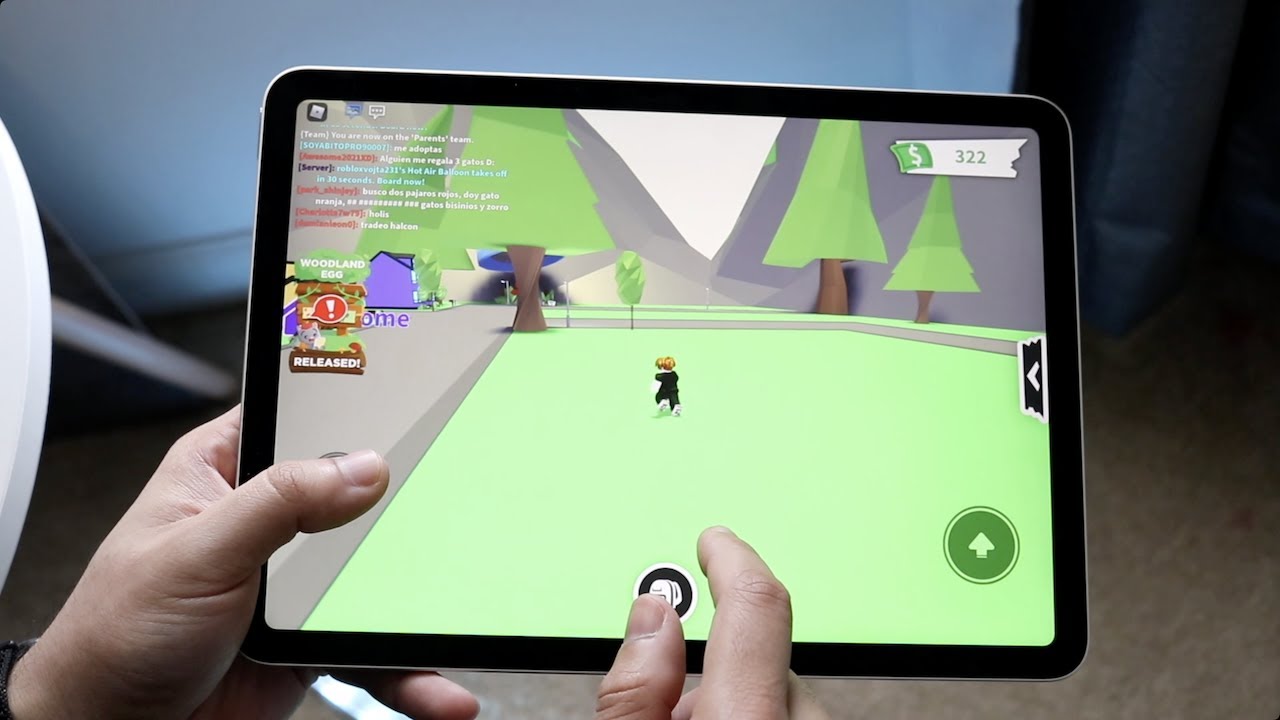


Roblox On IPad Your Guide To Downloading And Playing Roblox On IPad 1676963007 . Roblox Archives Louisiana Illuminator Roblox App On Tablet 1024x576 . Turn On Voice Chat In Roblox How To USE Voice Chat In Roblox IPad . How To Use Keyboard On Roblox Ipad How To Use Keyboard On Roblox Ipad 1.webp. How Does The Roblox Push To Talk Button Work Effectively How To Enable Voice Chat In Roblox 2026.webp
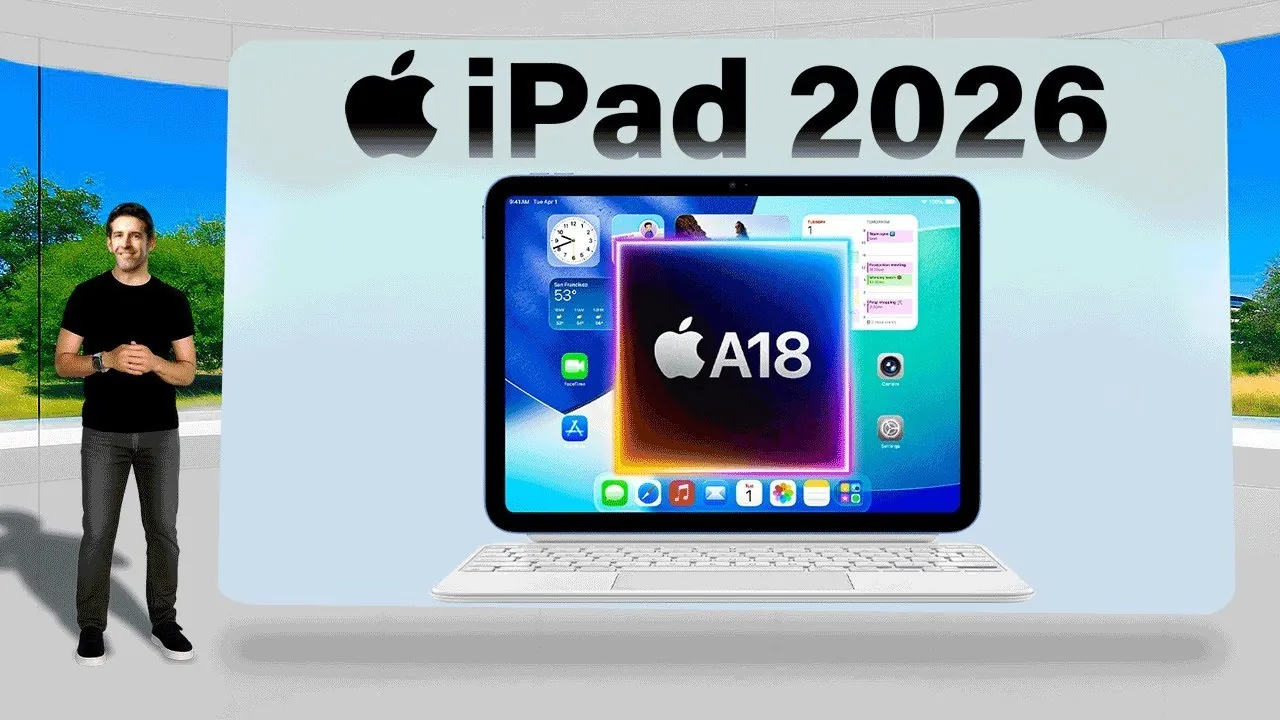



IPad 2026 Features And Specs Everything You Need To Know Geeky Gadgets Apple Ipad 2026 Wifi 7. Lost Roblox Password How To Find Yours In 2026 . How To Fix Game Mode Not Working In Roblox On IPhone IPad 360 Reader How To Fix Game Mode Not Working In Roblox On IPhone IPad 1024x576 . How To Update Roblox In 2026 Fix Error Code 280 On PC Mobile Xbox Roblox Update It.webp. 4 Easy Methods To Block Roblox On IPhone And IPad Stop New Apps From Being Installed On Iphone


Roblox On IPad 10th Generation YouTube . How To Play Roblox On IPad With Keyboard 2025 Step By Step YouTube . Roblox On IPad Your Guide To Downloading And Playing . IPad 10th Generation On Roblox Ipad In Bloxburg Roblox Ipad Screen . Ultimate Fix For Roblox Loading Issues On IPhone IPad Tech How 1 Update Roblox App


How To Fix A Roblox Install That Won T Open On Any Device 12 1178x1536 . 4 Easy Methods To Block Roblox On IPhone And IPad Block Roblox On Iphone And Ipad Guide 2 . Stop The Blocks Blocking Roblox On Your IPad . How To Create Roblox Games On Ipad How To Create Roblox Games On Ipad Hqdefault . How To Get And Enable Vc On Roblox Ipad Allow Roblox Voice Chat



How To Do Delta On Roblox IPad A Step By Step Guide TikTok Img. Apple 2026 IPad Lineup Features Specs And Pricing Geeky Gadgets 2026 Ipad Lineup Oled Display Upgrades Optimized . Stop The Blocks Blocking Roblox On Your IPad How To Block Roblox On Ipad 3 . How To Publish A Game On Roblox In 2026 Roblox YouTube . Roblox Joins On How To Enable Them In 2026 Appear Offline On Roblox Step 13



How To Activate Voice On Roblox Ipad Enable Roblox Feature Voice Chat . How To Download And Install Roblox For Free Play Roblox How To Play Roblox Studio Ipad . IPad 2026 Release Date Price Features Battery Model The IPad 2026 Design Build Edited 1 . How To Install Roblox Studio On IPad How To Make Roblox Games On IPad Hqdefault . Roblox On IPad Your Guide To Downloading And Playing How To Stop Roblox From Crashing On IPad