Are you a busy adult gamer juggling work, family, and a craving for creative, social play? Many gamers in 2026, especially those balancing life's demands, find Chromebooks to be a perfect blend of productivity and casual gaming. Roblox, with its vast universe of user-generated content and strong social features, offers that much-needed escape and connection. However, figuring out how to download Roblox on Chromebooks can sometimes feel like navigating a maze. This comprehensive guide will walk you through every step, whether you are using the Google Play Store method or venturing into Linux beta. We'll cover installation, optimization tips, and even troubleshooting common issues, ensuring you can jump into your favorite Roblox experiences without a hitch. Discover how to transform your everyday Chromebook into a portal for fun, creativity, and community, perfect for those precious gaming moments. We understand the value of your time and your budget, so we're here to make your Roblox journey on Chromebook as smooth and enjoyable as possible. Get ready to build, play, and connect!
How do I install Roblox on my Chromebook?
You can install Roblox on your Chromebook primarily through two methods: using the Google Play Store for the Android app version (most common and easiest) or by enabling the Linux (Beta) environment and installing the Windows version via Wine. Most modern Chromebooks support the Google Play Store, making it a simple download and install process similar to a tablet.
Is my Chromebook powerful enough to run Roblox smoothly?
For a smooth Roblox experience, especially in more demanding games, your Chromebook should ideally have an Intel Core i3 (10th Gen or newer) or AMD Ryzen 3 processor, and at least 8GB of RAM. While 4GB RAM might work for lighter games via the Play Store, more RAM and a stronger CPU will significantly improve performance and minimize lag or crashes.
Why won't Roblox launch on my Chromebook after installation?
If Roblox isn't launching, first ensure your Chrome OS is updated. If using the Play Store app, try clearing the app's cache and data through your Chromebook's settings (Apps > Roblox > Storage). If using the Linux method, verify your Wine installation and that you are launching the correct executable. A simple Chromebook restart often resolves many launch issues.
Can I play all Roblox games on my Chromebook?
Generally, yes, you can play most Roblox games. However, graphically intensive or very complex experiences might struggle on less powerful Chromebooks, especially if you're using the Android version which can sometimes be less optimized than the PC client. The Linux method might offer better compatibility for certain PC-specific features or graphical fidelity, but it also demands more resources from your Chromebook.
How can I improve Roblox performance and reduce lag on my Chromebook?
To improve Roblox performance, start by closing all unnecessary browser tabs and background applications. Within Roblox, significantly lower the in-game graphics settings. Ensure your internet connection is stable and fast. Keeping your Chrome OS updated also helps, as updates often include performance optimizations for Android and Linux environments.
What are the best settings for Roblox on Chromebook to avoid crashing?
To avoid crashing, the best settings involve minimizing system strain. Always set Roblox's in-game graphics quality to the lowest viable option. Ensure your Chromebook's RAM isn't overtaxed by closing all other applications. If using Linux, make sure your Linux container has sufficient memory allocated. Regular Chromebook restarts also help clear temporary memory issues that can lead to instability.
Does playing Roblox on a Chromebook drain battery quickly?
Playing any game, including Roblox, will generally drain your Chromebook's battery faster than typical browsing or productivity tasks. The exact rate depends on your Chromebook's model, battery capacity, and the intensity of the Roblox experience you're playing. To conserve battery, lower screen brightness, close background apps, and play games with less demanding graphics settings. For extended sessions, it's always best to keep your Chromebook plugged in.
Life moves fast, and for many adult gamers the average age of a US gamer hovers around 36 with about 87% playing regularly, averaging over 10 hours a week finding time for relaxation and fun is crucial. You juggle jobs, family, and a myriad of responsibilities, yet that desire to connect, unwind, or even build skills through gaming remains strong. This month, social gaming platforms like Roblox continue to dominate, offering quick, creative bursts of fun. But if you’re one of the millions relying on a Chromebook for everyday tasks, you might be wondering: can my go-to laptop also be my portal to the expansive world of Roblox? The good news is, absolutely!
Chromebooks have evolved dramatically, becoming powerful, budget-friendly machines that increasingly support more than just web browsing. With the right know-how, you can transform your Chromebook into a capable gaming device, perfect for diving into Roblox’s endless array of games. Many gamers value efficiency and getting straight to the action, and that's exactly what we're here to help you achieve. We’ll cut through the confusion, provide clear, actionable steps, and share insider tips to ensure your Roblox experience on your Chromebook is as seamless and enjoyable as possible. No more wrestling with complicated setups or frustrating performance issues; just pure, unadulterated gaming fun, perfectly balanced with your busy life. Let’s get you playing!
What Exactly Is Roblox and Why Is It Popular With Adult Gamers?
Roblox isn't just a game; it's a massive online platform where users create and play millions of diverse games and experiences. Think of it as a metaverse playground, offering everything from immersive role-playing and adventure games to competitive challenges and social hangouts. For adult gamers, its appeal lies in its incredible variety and accessibility. It offers a low-stress environment for relaxation and social interaction, which is a major draw for individuals balancing demanding schedules. With over 200 million monthly active users globally, Roblox provides unique opportunities for creative expression, problem-solving, and connecting with friends, making it far more than just a children's game. This month's trends continue to highlight its social and creative aspects, making it a perfect escape for busy adults.
Can You Really Download Roblox on a Chromebook in 2026?
Yes, absolutely! In 2026, downloading Roblox on a Chromebook is not only possible but increasingly straightforward, thanks to the continuous advancements in Chrome OS. There are primarily two main methods to achieve this: utilizing the built-in Google Play Store, which offers the Android version of Roblox, or employing the Linux (Beta) environment to install the desktop version. The method you choose largely depends on your specific Chromebook model and its capabilities, particularly whether it supports Android apps or Linux. Most modern Chromebooks come with Google Play Store support right out of the box, making it the most common and easiest path for getting Roblox up and running.
How Do I Download Roblox Using the Google Play Store on My Chromebook?
This is the simplest and most common method for the majority of Chromebook users. If your Chromebook supports Android applications and most current models do you'll be playing Roblox in minutes. Here’s a step-by-step guide:
- Enable Google Play Store: First, make sure the Google Play Store is enabled on your Chromebook. Go to your Chromebook’s Settings, then look for “Apps” or “Google Play Store.” If it's not already on, you'll see an option to “Turn on” the Google Play Store.
- Open Google Play Store: Once enabled, find the Google Play Store app icon in your app launcher (usually a colorful triangle). Click to open it, just like you would on an Android phone or tablet.
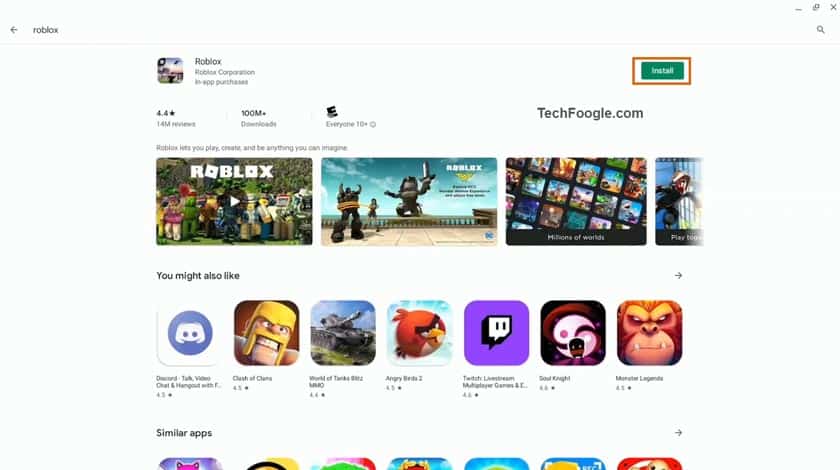
- Search for Roblox: In the search bar at the top of the Play Store, type “Roblox” and press Enter.
- Install Roblox: Locate the official Roblox app in the search results (it should be published by Roblox Corporation). Click on it, then tap the “Install” button. The app will download and install automatically.
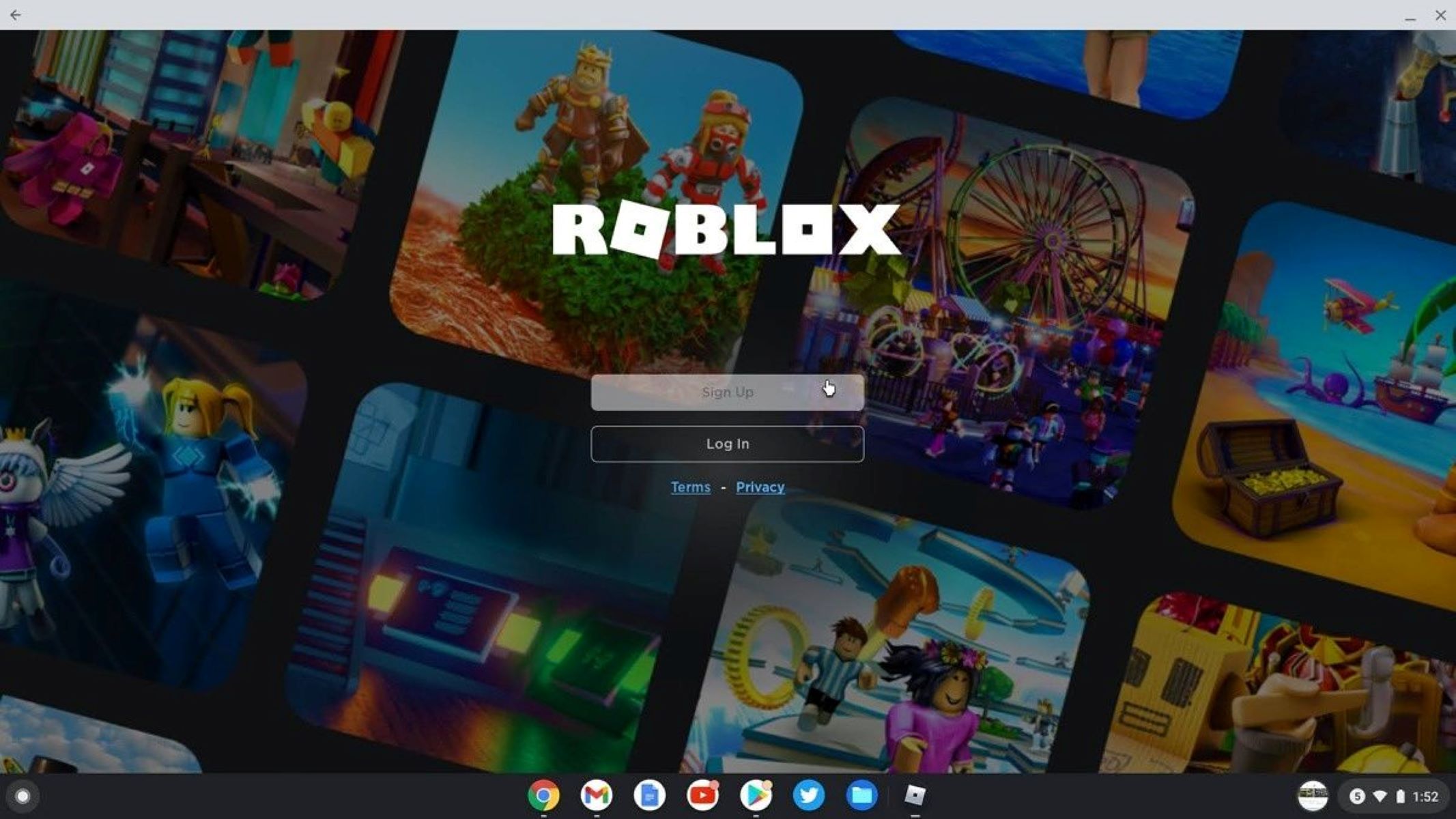
- Launch and Play: Once installation is complete, you can find the Roblox app icon in your Chromebook’s app launcher. Click it to open, log in with your existing account or create a new one, and start exploring!
This method leverages the optimized Android version of Roblox, which generally runs very well on Chromebooks designed for Android app compatibility. Remember, consistent internet access is essential for both downloading and playing Roblox.
What If My Chromebook Doesn't Support the Google Play Store for Roblox?
While most newer Chromebooks support Android apps via the Google Play Store, some older or entry-level models might not. If you find that the Google Play Store option isn't available or doesn't work well for you, don't despair! Your next best bet is to use the Linux (Beta) feature on your Chromebook. This method allows you to install the traditional Windows/PC version of Roblox through a compatibility layer called Wine. It's a bit more involved than the Play Store method but opens up more possibilities for those with specific hardware limitations or who prefer the desktop experience.
Guide Me Through Installing Roblox Via Linux (Beta) on My Chromebook.
Installing Roblox through the Linux (Beta) environment is a powerful alternative, especially if you desire the full desktop client experience or if your Chromebook lacks Play Store support. This process involves a few more steps, but it’s definitely manageable. Remember, a more capable Chromebook with ample RAM (8GB or more is ideal) and a decent processor will yield better results.
- Enable Linux (Beta): Go to your Chromebook’s Settings. Scroll down to “Developers” and find “Linux development environment (Beta).” Click “Turn on” and follow the prompts to set up your Linux container. This might take several minutes.
- Update Linux: Once Linux is set up, open the Terminal app (found in your app launcher, usually a black icon). Run these commands to ensure everything is up-to-date:
sudo apt updatethensudo apt upgrade - Install Wine: Wine is a compatibility layer that allows you to run Windows applications on Linux. Install it by typing:
sudo apt install wineFollow any prompts to confirm the installation. - Download Roblox Player for Windows: Open your Chromebook's browser and go to the official Roblox website (roblox.com). Log in to your account. When you attempt to join any game, the website will prompt you to download the Roblox Player. Download the .exe file to your Chromebook's Downloads folder.
- Move and Install Roblox: In the Linux Terminal, navigate to your Downloads folder:
cd /mnt/chromeos/MyFiles/DownloadsThen, run the Roblox installer using Wine:wine RobloxPlayer.exe - Follow Installer Prompts: A familiar Windows installer window should appear. Follow the on-screen instructions to complete the Roblox installation within your Linux environment.
- Launch Roblox: After installation, Roblox might create a desktop shortcut within the Linux environment. Alternatively, you can typically launch it from the Terminal using:
wine C:Program Files (x86)RobloxVersions[latest_version]RobloxPlayerBeta.exe(Note: The `[latest_version]` path will vary, you might need to check the actual folder name within `~/.wine/drive_c/Program Files (x86)/Roblox/Versions/`). For easier access, you can create a custom launcher for it.
This method gives you the full PC experience, which some gamers prefer. Be aware that performance can vary depending on your Chromebook’s specifications.
How Can I Optimize Roblox Performance on My Chromebook?
Even with a good installation, optimizing your Chromebook for Roblox can significantly improve your gaming experience, especially for busy adults looking for smooth, stress-free playtime. Here are key tips:
- Close Background Apps: Chromebooks are great at multitasking, but every open tab or app consumes RAM and CPU. Before launching Roblox, close unnecessary browser tabs, streaming services, and other applications to free up resources.
- Adjust In-Game Graphics Settings: Once in Roblox, go to the game's settings (usually accessible via the escape key or a menu icon). Lower the graphics quality or 'graphics mode' setting. Reducing shadow detail, texture quality, and overall resolution can dramatically boost frame rates.
- Ensure Chrome OS is Up-to-Date: Regularly update your Chromebook's operating system. Updates often include performance enhancements and bug fixes that can positively impact gaming. Go to Settings > About Chrome OS > Check for updates.
- Monitor Internet Connection: Roblox is an online game, so a stable and fast internet connection is paramount. If you're experiencing lag, try moving closer to your Wi-Fi router or using an Ethernet adapter if available.
- Restart Your Chromebook: A simple restart can clear temporary files and memory issues that might be slowing down your system. It's often the quickest fix for unexplained slowdowns.
- Consider a Powerwash (Last Resort): If your Chromebook feels consistently sluggish, a Powerwash (factory reset) can sometimes help by removing bloatware or corrupted files. Back up your data first!
By implementing these adjustments, you'll be able to enjoy a much smoother and more responsive Roblox session.
Are There Any Specific Chromebook Models Best for Playing Roblox Smoothly?
For adult gamers on a budget, choosing the right Chromebook can make all the difference. While many Chromebooks can run Roblox, certain specifications will provide a much better experience. Look for these key features:
- Processor: An Intel Core i3 (10th generation or newer), AMD Ryzen 3, or a powerful MediaTek Kompanio chip (like the 1380 or 1200) will offer a significant performance boost over entry-level Celeron or older Pentium processors.
- RAM: 8GB of RAM is highly recommended, especially if you plan to use the Linux method or keep multiple tabs open. 4GB can work for lighter games via the Play Store, but it will be a bottleneck for anything more demanding.
- Storage: 128GB of eMMC or, even better, NVMe SSD storage will ensure faster loading times for both the OS and Roblox itself.
- Screen Resolution: A 1080p (Full HD) display is ideal for crisp visuals without overtaxing the GPU too much.
Brands like Acer Chromebook Spin, Lenovo IdeaPad Flex 5 Chromebook, HP Chromebook x360, and certain ASUS models often offer configurations that meet these recommendations. This month, many retailers are featuring deals on mid-range Chromebooks that strike a great balance between price and performance, perfect for getting into Roblox without breaking the bank.
What Are the Social Benefits of Playing Roblox for Busy Adults?
Roblox isn't just about gaming; it's a vibrant social hub, offering unique benefits for adults looking for connection and relaxation. For gamers balancing life and work, the platform provides an accessible way to:
- Connect with Friends and Family: Join friends, kids, or even other adult gamers in virtual spaces, building shared experiences without needing to be physically together. It's a fantastic way to bond with younger family members or keep up with distant friends.
- Stress Relief and Escapism: Dive into imaginative worlds, engage in creative tasks, or simply explore without the pressures of daily life. This month's data shows a strong trend toward 'cozy games' and social experiences as key stress relievers.
- Skill Building: Many Roblox experiences involve problem-solving, strategic thinking, and teamwork. For those interested in creation, Roblox Studio offers a powerful, user-friendly environment to learn coding and game design skills.
- Community Engagement: Discover niche communities centered around specific games, interests, or creative pursuits. It’s a low-pressure environment to make new connections and participate in a global digital culture.
Roblox offers a flexible way to engage, allowing you to jump in for short sessions or longer adventures, fitting perfectly into those precious moments of downtime.
How to Manage In-Game Purchases and Stay Budget-Friendly in Roblox?
Roblox operates on a freemium model, meaning the core experience is free, but in-game purchases (Robux) are available for cosmetic items, game passes, and special abilities. For budget-conscious adult gamers, smart spending is key:
- Set a Budget: Before you even consider buying Robux, decide on a strict monthly or weekly budget. This prevents impulse purchases and keeps your gaming expenses in check.
- Prioritize Purchases: Focus on game passes or items that significantly enhance your experience or unlock new features rather than purely cosmetic items that offer little functional value.
- Look for Deals: Keep an eye out for official Robux sales or bundle deals, especially around holidays. These can offer better value for your money.
- Consider Premium: Roblox Premium is a subscription service that gives you a monthly Robux stipend and a 10% bonus on Robux purchases. If you know you'll be spending regularly, this can save you money in the long run.
- Use Gift Cards: Roblox gift cards are a great way to control spending, as they limit you to a pre-set amount. They also make excellent gifts!
By being mindful of your spending habits, you can fully enjoy Roblox without it impacting your financial goals, which is crucial for gamers balancing families and budgets.
Troubleshooting Common Issues When Playing Roblox on a Chromebook.
Even with the best setup, you might encounter a glitch or two. Here are quick fixes for common Roblox problems on a Chromebook:
- Roblox Not Launching (Play Store): Ensure your Chromebook's OS is updated. Clear the Roblox app's cache and data (Settings > Apps > Roblox > Storage > Clear cache/data). Restart your Chromebook.
- Roblox Crashing (Linux): This often points to resource issues. Close all other Linux apps and Chrome tabs. Lower in-game graphics settings. Ensure Wine and your Linux environment are fully updated. Allocate more RAM to your Linux container if your Chromebook has spare capacity.
- Lag or Low Frame Rates: Check your internet connection stability. Lower in-game graphics settings significantly. Ensure no background downloads are happening. Restart your Chromebook to clear memory.
-
Effortlessly download Roblox on your Chromebook using Google Play Store or Linux Beta. Optimize performance for smooth gameplay, discover best Chromebooks for Roblox, and troubleshoot common issues. Unlock social gaming and creative experiences on your budget-friendly device.
35#1 Gallery download roblox on chromebook

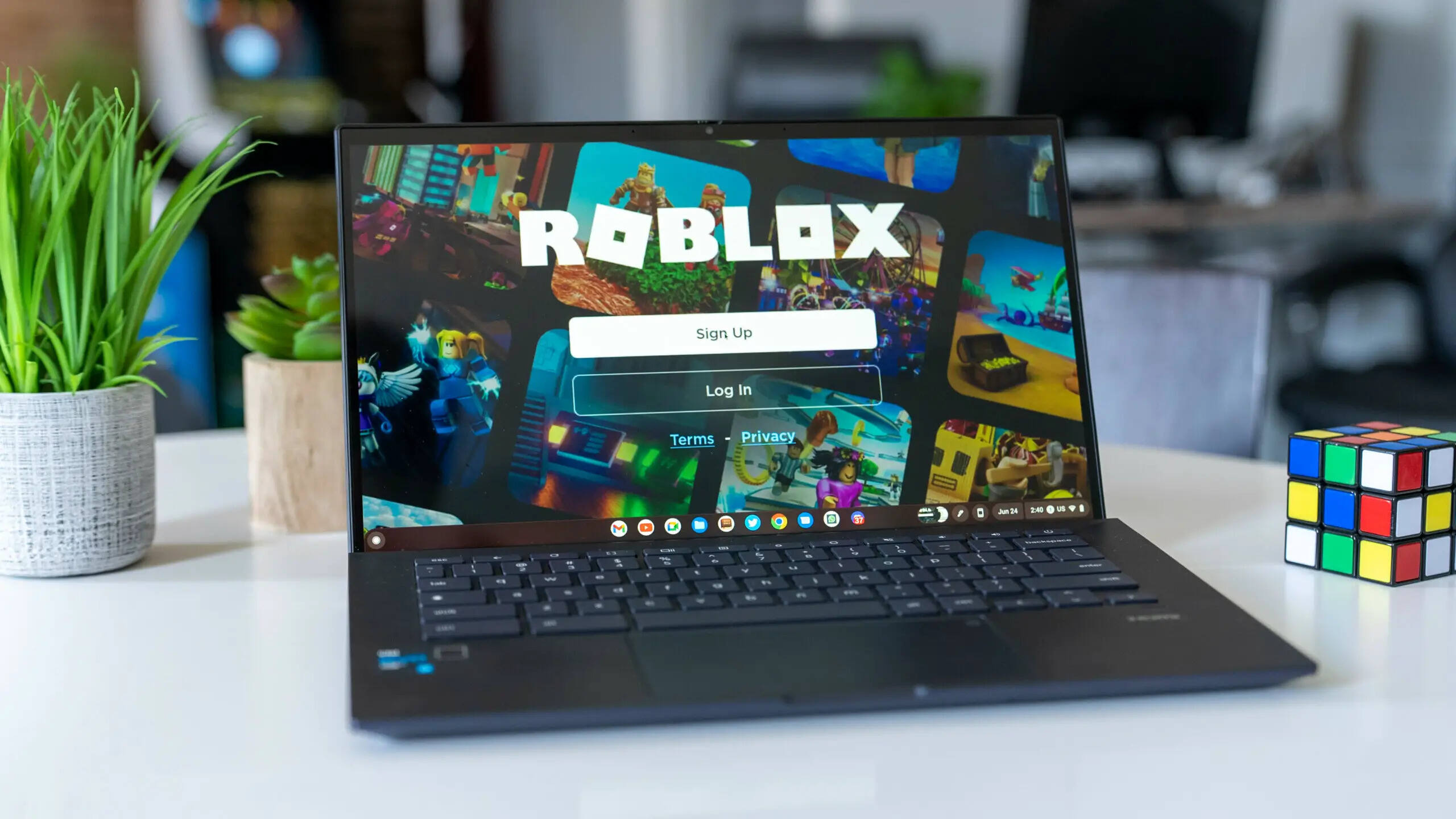


How To Install Roblox On Chromebook YouTube . How To Download Roblox On Chromebook QUICK EASY 2026 YouTube . How To Play Roblox On Google Chrome OS Robots Net How To Download Roblox On Chromebook 1696019816 . Gaming Guide How To Play Roblox On Chromebook 2026 How To Download And Play Roblox On A Chromebook 747x420 . How To Download Roblox Studio On Tablet How To Play Roblox Online Through Chrome On Chromebook
#2 Gallery download roblox on chromebook
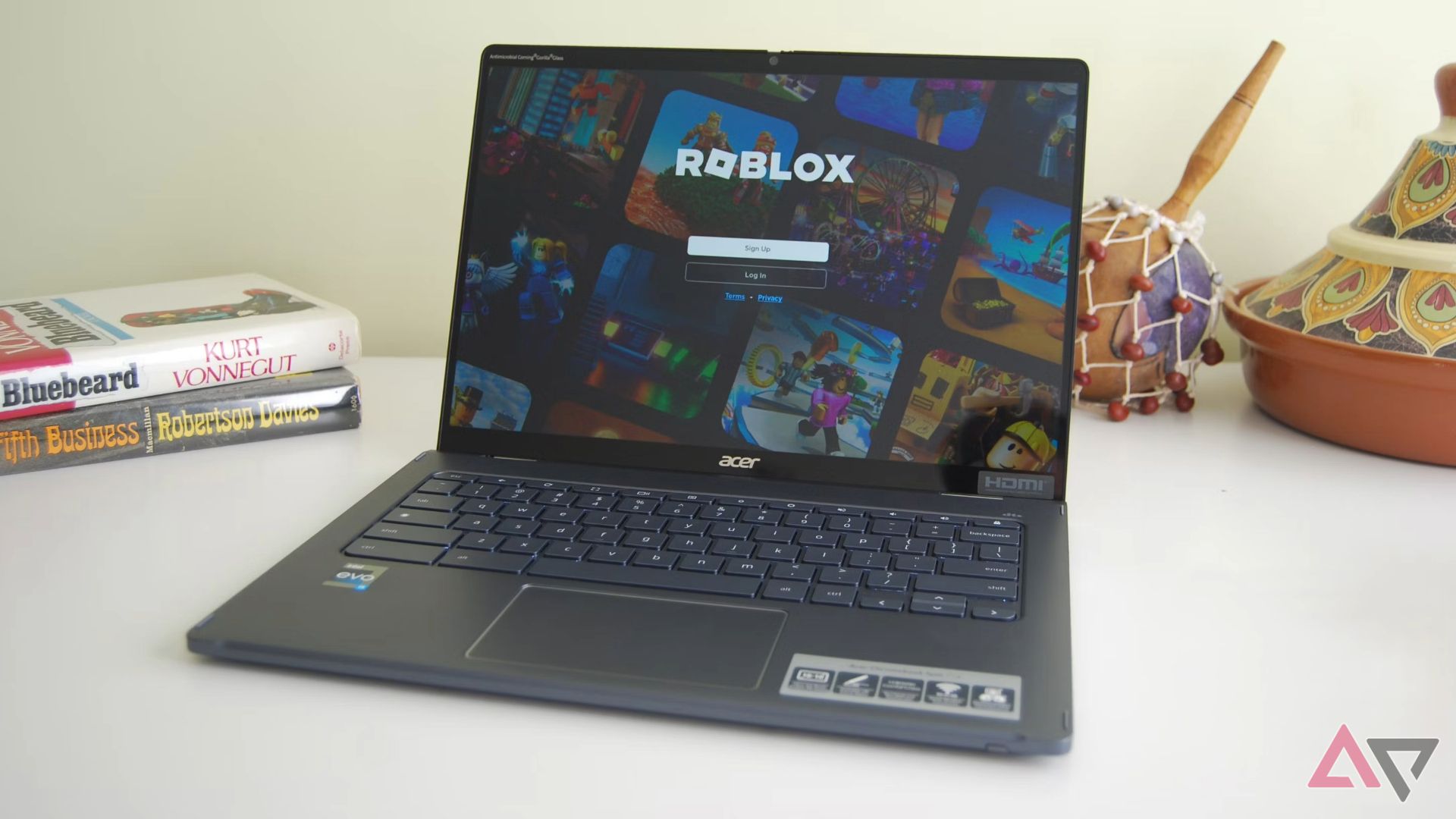

Roblox For Chrome Download Is It Possible In 2026 . How To Download Roblox On A Chromebook Robots Net How To Play Roblox On A Chromebook 1706813892 . Can You Download Roblox On Chrome OS Discover How Roblox Chromebook Hero . How To Download Roblox Studio On Chromebook 2026 YouTube . How To Play Roblox On Browser On Chromebook Robots Net How To Download Roblox On Chromeos 1695972604
#3 Gallery download roblox on chromebook

Can You Install The Roblox App On Chromebook In 2026 How To Play Roblox On A School Chromebook . How To Download Roblox On Chromebook WITHOUT PLAY STORE HP ACER And . Can You Download Roblox On Chrome OS Discover How Install Roblox From Chromebook Play Store . Roblox On Chromebook Your Ultimate Guide How To Download Roblox On Chromebook . How To Install Roblox On A Computer Easily 2026 Guide
#4 Gallery download roblox on chromebook

How To Play Roblox On Chromebook In 2026 Performance Setup Roblox. How To Download Roblox On A School Chromebook Robots Net How To Download Roblox On Chrome Os Without Google Play 1695607718 . How To Fix Roblox Lag On Chromebook Chrome Nerd Install Roblox On Chromebook . Can You Play Roblox On A Chromebook In 2026 Roblox On Chromebook . How To Play Roblox On A Chromebook Robots Net How To Download Roblox On A Chromebook 1694170395
#5 Gallery download roblox on chromebook

Can You Play Roblox On A Chromebook In 2026 How To Play Roblox On A School Chromebook . Can You Play Roblox On A Chromebook In 2026 Como Jugar Roblox En Chromebook De La Escuela . Can You Play Roblox On A Chromebook In 2026 Roblox Chromebook Share . Can You Play Roblox On A Chromebook In 2026 Play Roblox On Your Chromebook . Can You Play Roblox On A Chromebook In 2026 Play Roblox School Chromebook 1024x683
#6 Gallery download roblox on chromebook

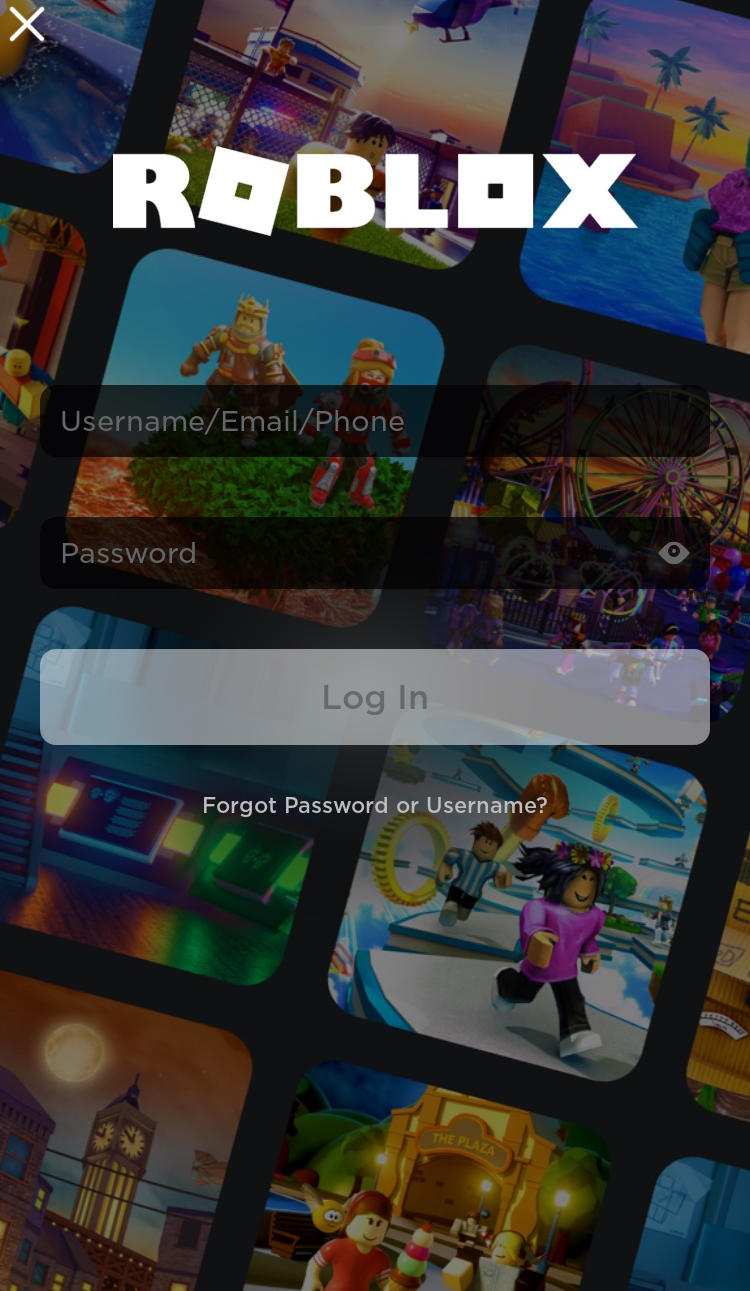
How To Play Roblox On Chromebook Use A Proxy Server To Unblock Roblox.webp. Want To Downoald Roblox In 2026 A Complete Guide Awaits Roblox 20 1152x2048 . How To Download Roblox On Chromebook Robots Net How To Download Roblox On School Chromebook Without Google Play 1695570912 . How To Download Roblox On Any Device Easily In 2026 Image2 . How To Download Roblox On Any Device Easily In 2026 Roblox 1200x675
#7 Gallery download roblox on chromebook


How To Install Roblox On A Computer Easily 2026 Guide Install Roblox Step 30 . How To Download Roblox Images In 2026 A Quick Guide . How To Install Roblox On A Computer Easily 2026 Guide Select Roblox And Click. Can You Download Roblox On Chrome OS Discover How Download Roblox Step 29 . How To Download Roblox On Chrome OS Without Google Play Robots Net How To Download Roblox On A School Chromebook 1695453790